
Professional Mobile
Screen Mirroring
Connect your mobile phone to your PC or laptop with USB, mirror it on a bigger screen, and control it directly in your browser. See How To Use for help.
USB Connection
Recommended for pro-gaming & lowest latency
🔌 Best experience: Use the latest Google Chrome or Opera browser for full WebUSB support.
- 1Open Mirrizo on your PC, Laptop, TV, or Any Big Screen via Browser
Open mirrizo.com on the device where you want to view your phone screen — your PC, laptop, TV, or any big-screen device using a web browser.
DO NOT OPEN MIRRIZO ON YOUR MOBILE PHONE. Your mobile phone is the device you will mirror to the bigger screen. - 2Enable Developer Options
Go to Settings → About Phone → tap Build Number 7 times.
- 3Enable USB Debugging
Settings → Developer Options → toggle USB Debugging on.
- 4Connect your device
Connect your Android phone to your PC, laptop, TV, or other big-screen device using a USB cable.
- 5Allow USB Debugging
When your phone asks for USB debugging permission, tap Allow.
- 6Press Connect & Start Mirroring
On the Mirrizo page opened on your PC, laptop, or supported TV browser, click the USB Connect button and start mirroring.
- 7Allow USB Debugging Access
Tap Allow to authorize the USB connection.
📸 Visual Guide: Enabling USB Debugging
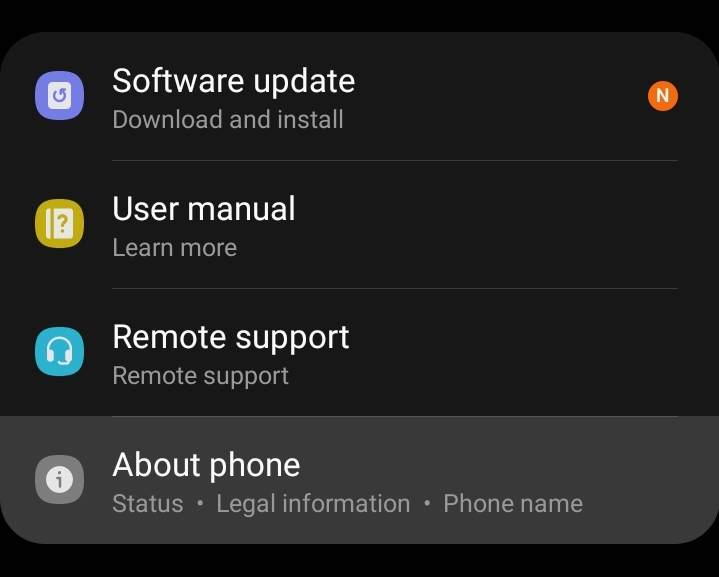
1. Go to Settings → About phone
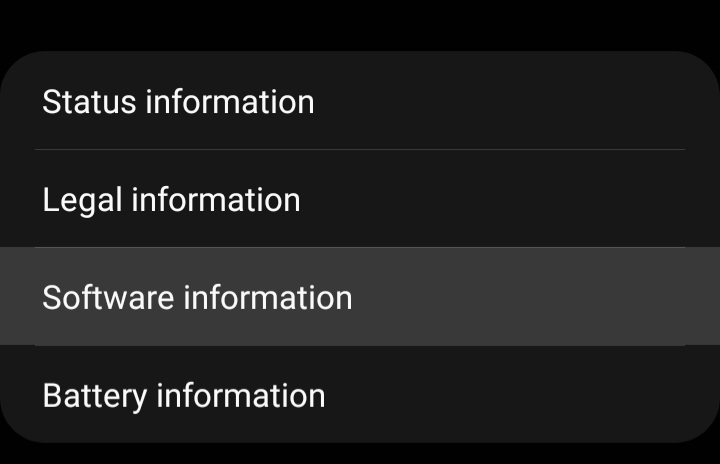
2. Tap Software information
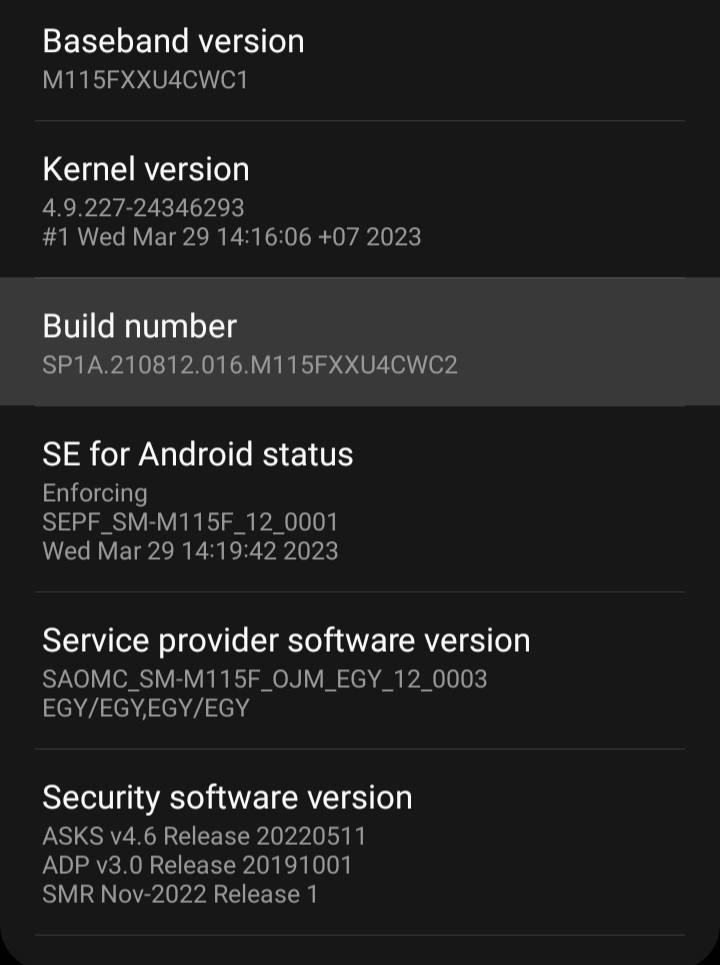
3. Tap Build number 7 times
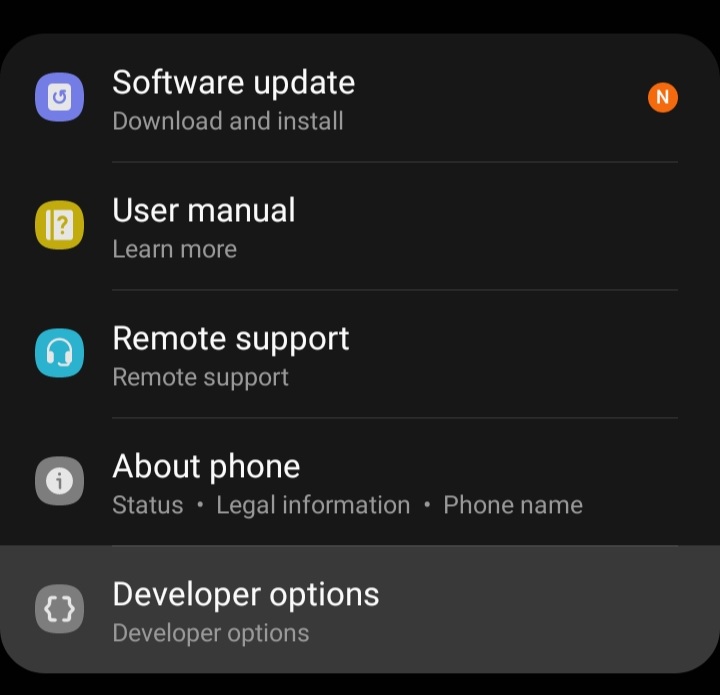
4. Open Developer options
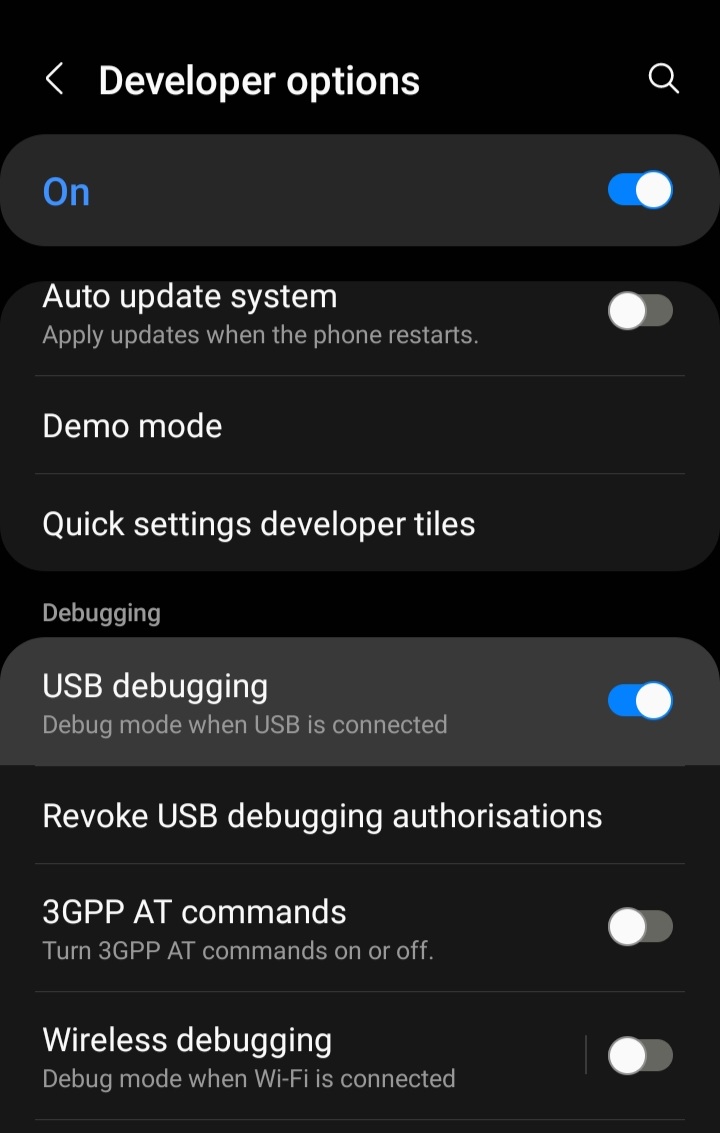
5. Toggle USB debugging ON
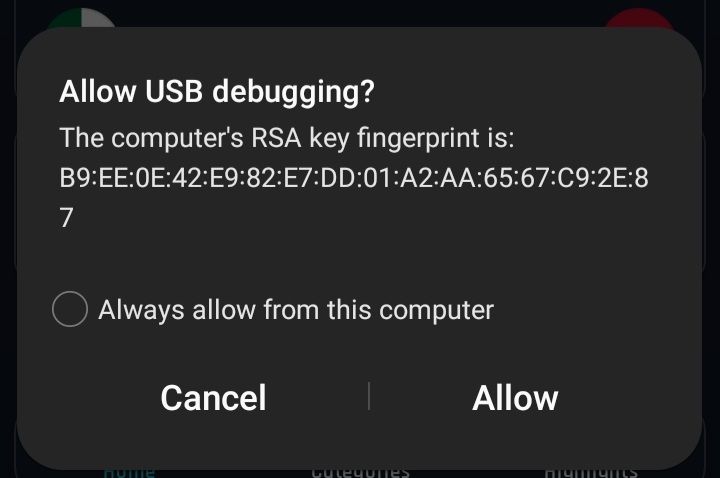
6. Allow USB Debugging Access
Tap Allow to authorize the USB connection.
📹 Video Tutorial: How to Connect Mirrizo via USB
🎮 Keyboard & On-Screen Controls
Once connected, enable Controls from the overlay to use your keyboard and mouse directly on the mirrored screen. Use Game Mode for pointer lock and optimized input during gaming sessions.
✦ Edit Layout — Drag, resize, and place on-screen control buttons anywhere on the screen. Arrange them to match your play style, save the layout, and use it anytime for a more comfortable and personalised control setup.
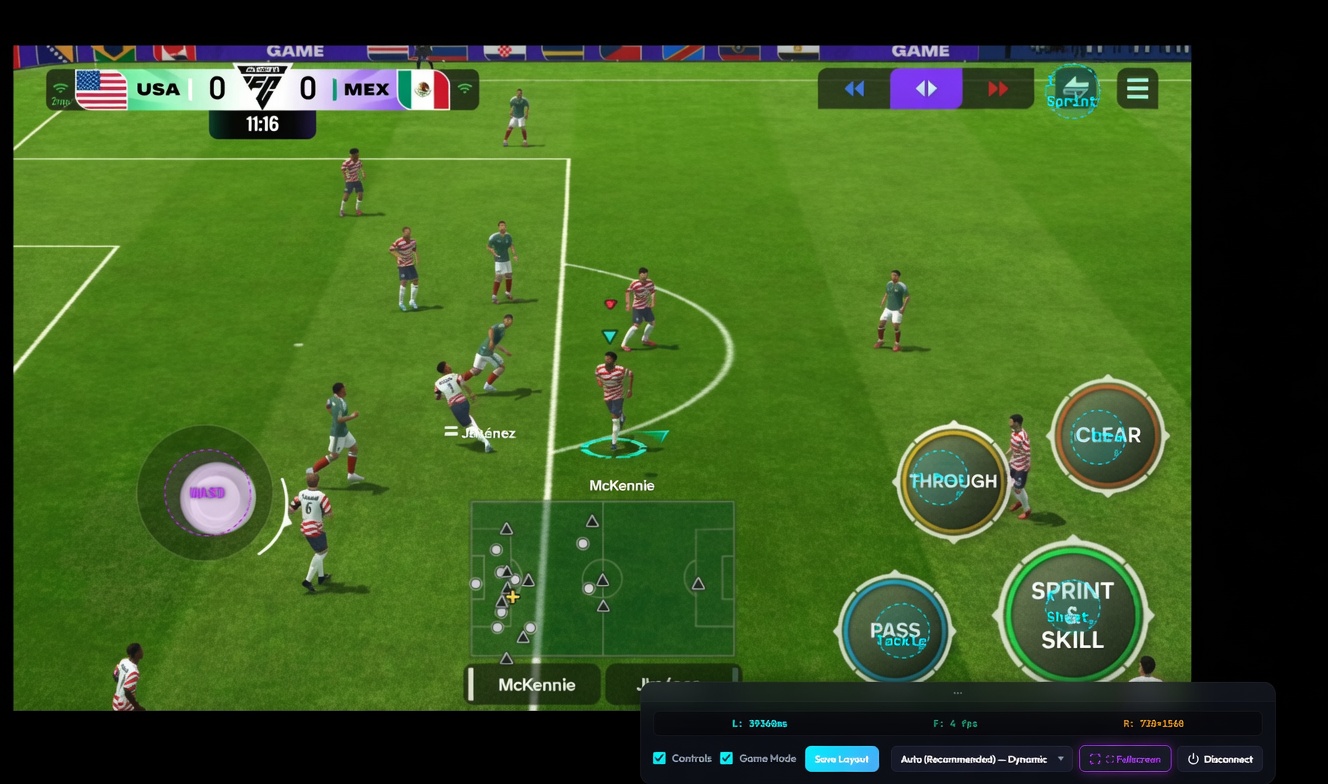
Overview of the keyboard and on-screen control layout.
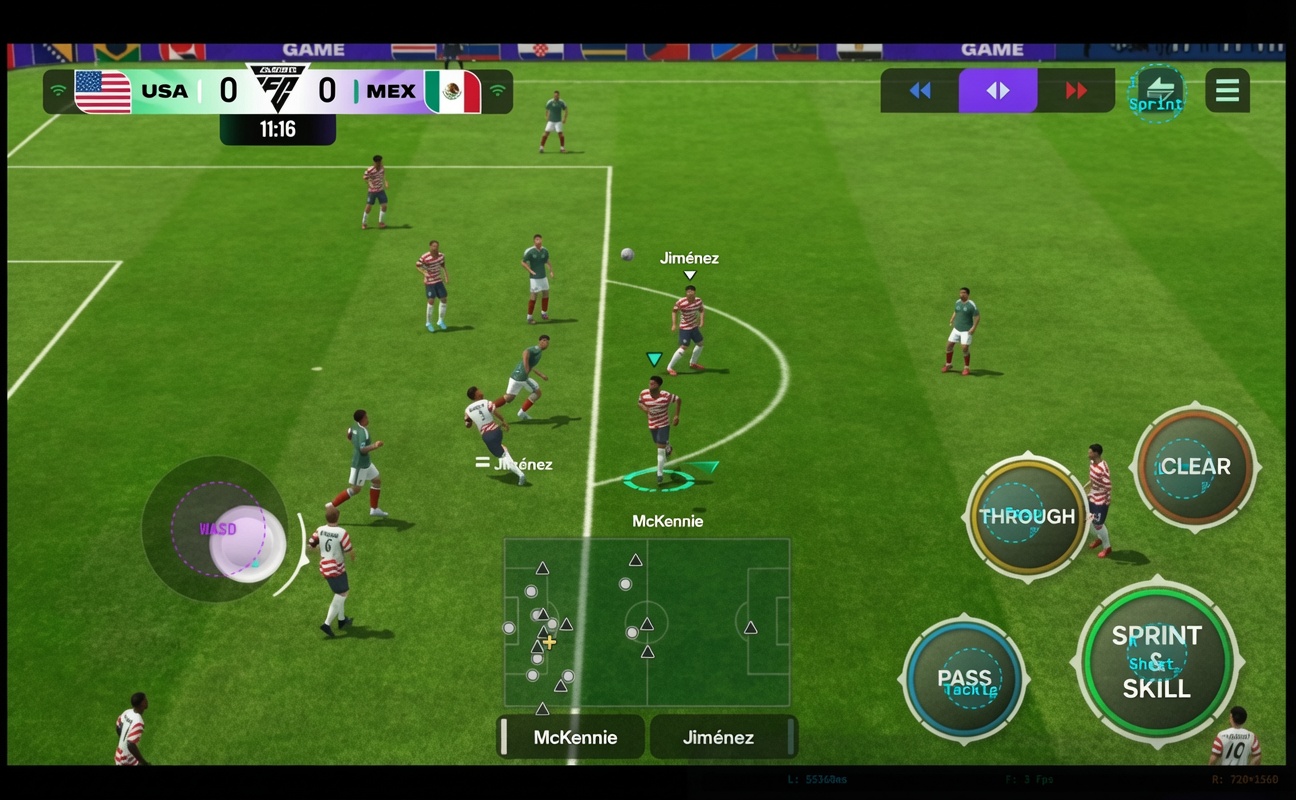
Customize the WASD controls and button positions using Edit Layout.